Everything you can do on the Map and in the Dossier
A complete walkthrough of both companion apps for your world — written for regular members, not admins. Screenshots throughout are taken from a live world, so the data you see is real.
Getting started
Both apps sit on top of the same account and the same membership in a world-faction — a specific world number paired with one of the three factions, North Central South. Everything else follows from that membership.
Accounts & sign-in
Sign in with email/password or Google — both apps use the same account. The first time you sign in, a short onboarding flow collects a few things about your character: your in-game name, faction, alliance, and where your stronghold sits on the map.
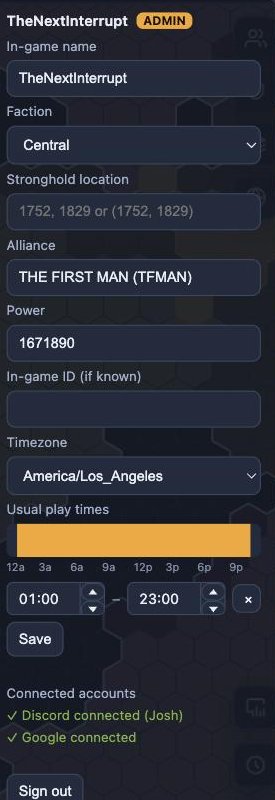
You'll also be asked for your stronghold location the first time (as coordinates, e.g. 1752, 1829) — this is what lets allies find you on the map. You can skip it and set it later from the account menu, or by claiming your own stronghold hex directly on the map.
Joining a world-faction
To see any real data, your account needs to belong to a world-faction. Your faction's admin hands out a short code — enter your world number, pick a faction, and type the code in:
- The regular codeword unlocks everything: the interactive map and the dossier.
- A separate dossier-only code (if your admin has set one) unlocks just the dossier — the player-tracking app — without map-editing access. It's handed out the same way, into the same single codeword field; the app figures out which kind you typed.
The join box appears on first sign-in, and again any time you want to join an additional world-faction. It looks the same on both apps:

Don't have a code at all? Both apps also let you request a brand-new world-faction, which a site admin reviews and approves — useful if your world hasn't been set up here yet.
Switching world-factions
If your account belongs to more than one world-faction, a switcher lets you jump between them without signing out. On the map it's the Worlds & Factions panel (globe icon, top right); in the dossier it's the dropdown in the header next to your name.
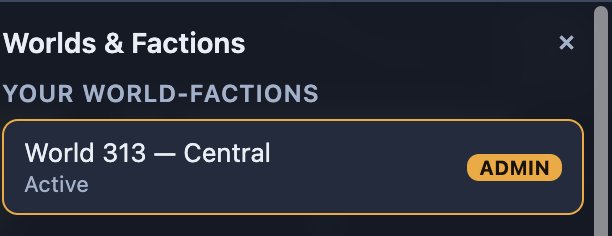
A dossier-only membership won't show up as something you can switch to on the map — and the reverse: the "Back to map" link in the dossier only appears when your current world-faction actually has map access.
The Map
The interactive hex map is the shared, living picture of your world: who holds what, where allies and enemies sit, and a running log of every claim anyone's made.
Navigating the map
The map is an effectively infinite hex grid. A few ways to get around:
| Action | How |
|---|---|
| Jump to coordinates | Type into the box in the top-left corner — either 1752, 1829 or (1752, 1829) — and press Go. |
| Zoom | + and − |
| Recenter | 0 |
| Pan | Click and drag |
The bottom-left corner always shows your current hex, zoom level, and how many landmark locations are visible in view.
Toolbar legend
Tools live in the left-edge column; panels and reports live on the right. Every icon below is a toggle — click it again, or click its panel's close button, to put it away.
Filters
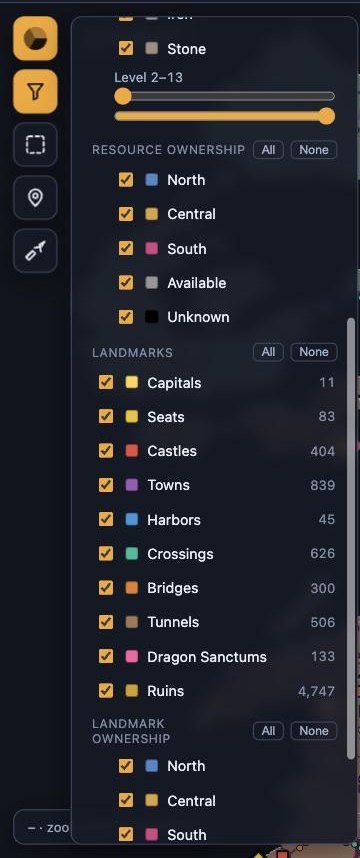
The filters panel controls what's actually drawn on the map — it doesn't change any data, just your view of it. It covers a lot of ground:
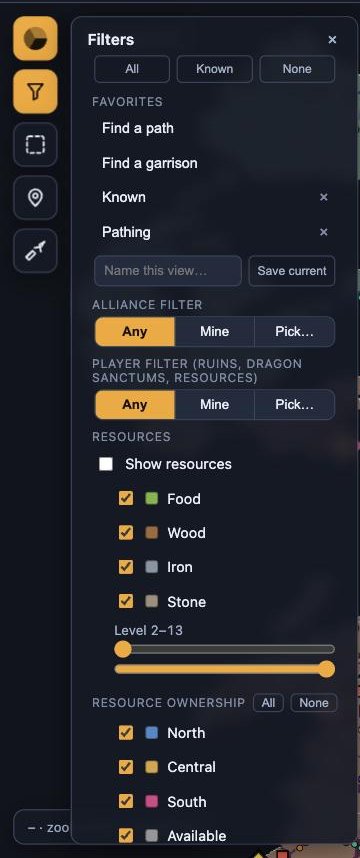
- Alliance filter — show resources/players tied to any alliance, only your own, or ones you pick.
- Resources — toggle food/wood/iron/stone individually, and restrict by level range.
- Resource & landmark ownership — show only tiles held by a given faction, unclaimed ones, or ones nobody's reported yet.
- Landmarks — capitals, seats, castles, towns, harbors, crossings, bridges, tunnels, dragon sanctums, ruins — each independently toggleable, with a running count.
- Show levels — print each one's level right on it, for resource tiles (Show tile levels) and for landmarks (Show landmark levels). Types whose level is the same everywhere — ruins are all level 1 — stay unlabelled either way.
- Saved views — once you've dialed in a combination you like, name it and save it under Favorites for one-click recall later.
Claiming a location
Click any hex with the Select tool active to open its claim card. Every claimable location — a castle, a town, a seat, a resource tile — works the same way: pick which faction currently holds it, and save.
Some also take a name alongside the faction, and which kind of name depends on who holds that sort of place in game: towns, harbors, crossings, bridges and tunnels are an alliance's, and so is a level 4 dragon sanctum; resource tiles, ruins and level 1–3 sanctums are one player's. The card asks for whichever applies, so a level 4 sanctum's card wants the alliance holding it, not the individual.
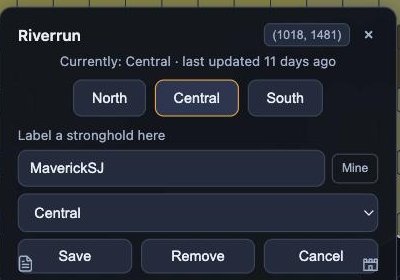
With a card open, single keys do the common things — most of a claiming session is the same few actions over and over:
| Key | Does |
|---|---|
| N C S | Claim for North, Central or South |
| U | Mark unoccupied, where the card offers it — regions do not |
| M | Mine — your name, your alliance, or your faction, whichever the card asks for |
| X | Clear the report, when there is one to clear |
| Tab | Jump into the name field |
| Esc | Close the card |
None of them fire while you are typing in a field, so a player called Nancy is a name and not three claims.
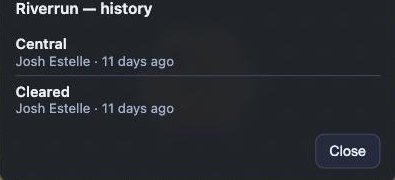
Every location keeps a full history of who changed it and when — click the small document icon on a claim card to see it:
Batch-selecting locations
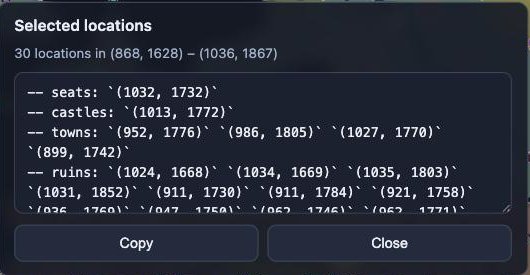
Drag with the Select tool instead of clicking, and you'll select every landmark inside the box rather than a single hex. This is the fastest way to pull a coordinate list for a region — say, to plan a march or share targets in Discord.
Placing pins
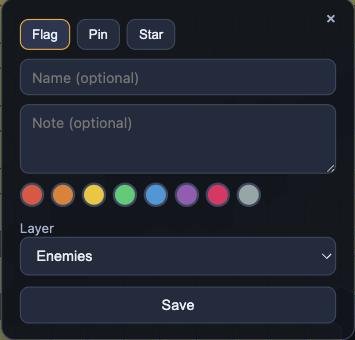
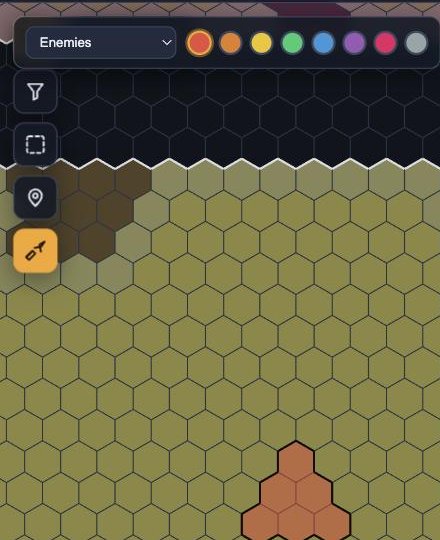
Need to mark something the map doesn't already track — an enemy sighting, a rally point, a note to yourself? The Place pin tool drops a marker anywhere, in one of three styles (flag, pin, or star), with an optional name, note, color, and which of your personal layers it belongs to.
Painting hexes
The Paint hexes tool colors in whole hexes freehand, on whichever personal layer is selected — handy for roughly shading in "enemy territory" or a planned route rather than placing individual pins. Click a painted hex again to clear it.
Roster
The Roster panel lists every known player in your world-faction, sorted by power, with tabs to narrow by faction. Click any row to see and edit that player's full record — faction, alliance, power, stronghold, in-game ID.
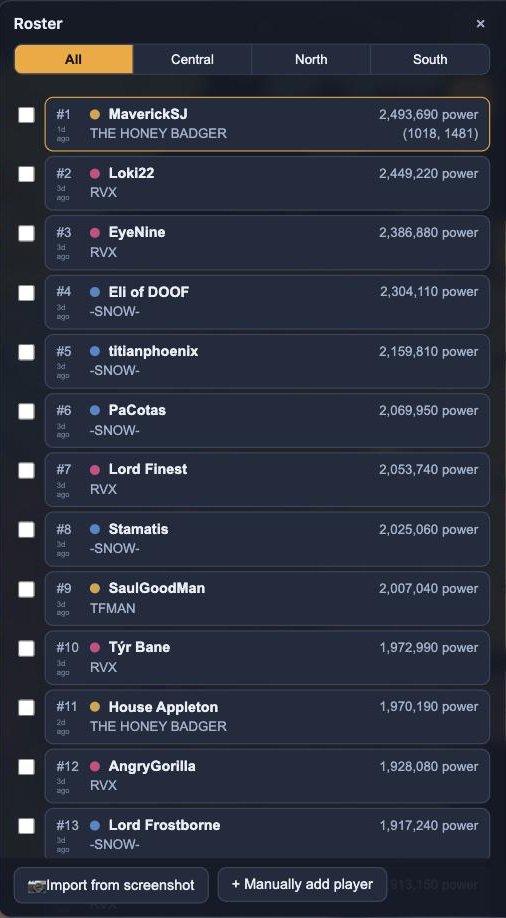
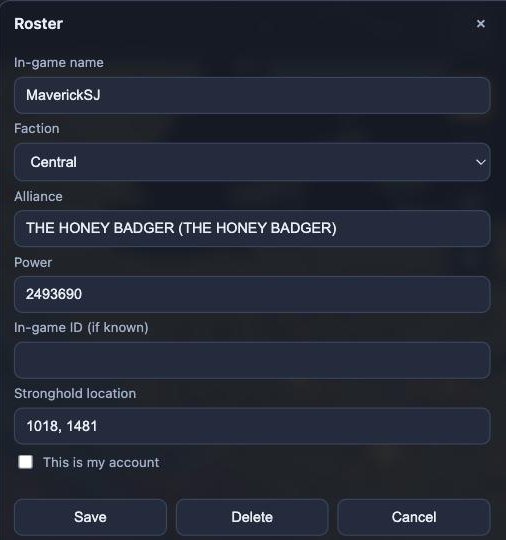
Two buttons at the bottom of the list let you add players without typing everything by hand: Import from screenshot (see below) and Manually add player.
Alliances
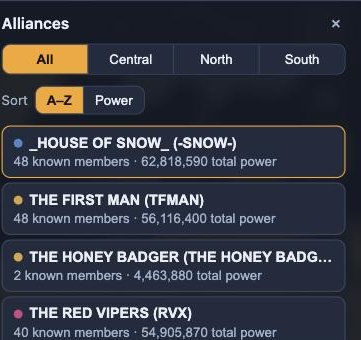
The Alliances panel is a read-only rollup: every known alliance in your world-faction, its member count, and total power, sortable alphabetically or by power.
Personal & shared layers
Layers are how your pins and painted hexes get organized. You start with a few defaults ("Enemies", "Possible targets", "Resources to grab"), and can add more. Any layer can be flagged Shared, which makes it visible to the rest of your world-faction — useful for a jointly-maintained "current targets" layer, for instance. Browse shared layers lets you see what others have shared.
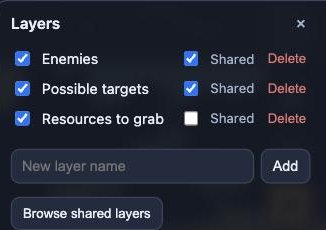
Importing from screenshots
Rather than hand-entering data, you can upload screenshots straight from the game and have them parsed automatically. On the map, this covers two things:
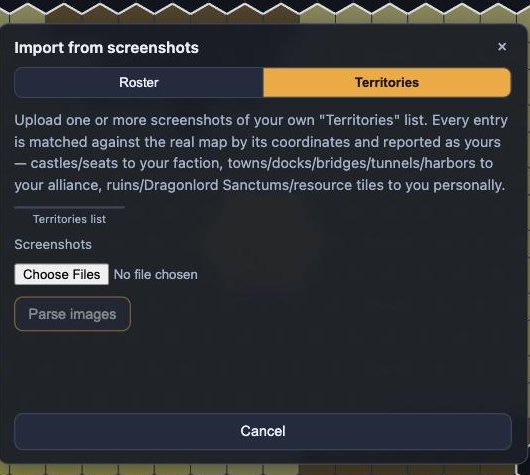
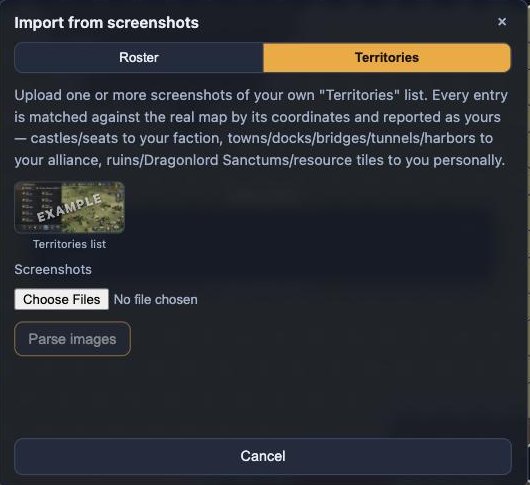
Either way, nothing saves automatically — every parsed entry is shown to you first so you can review and correct it before it's committed.
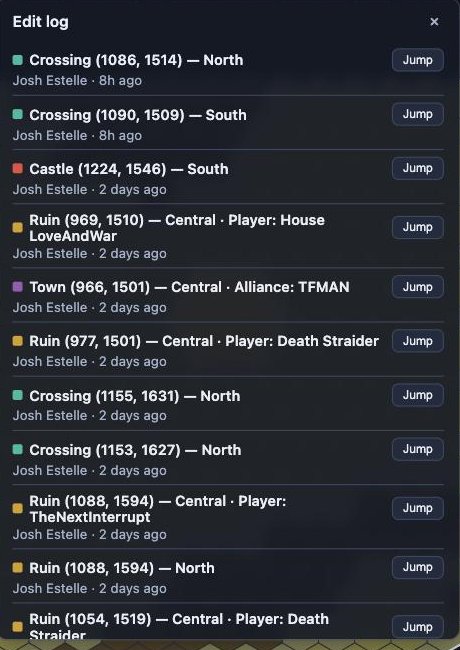
Edit log
A running feed of every claim change anyone in your world-faction has made, newest first, with a one-click Jump to fly the map straight to that hex.
POI report
Pick any landmark type (dragon sanctums, ruins, castles, and so on) and get a full breakdown: totals and growth rate per faction, a level breakdown, top individual holders, and a filterable, sortable list of every single instance.
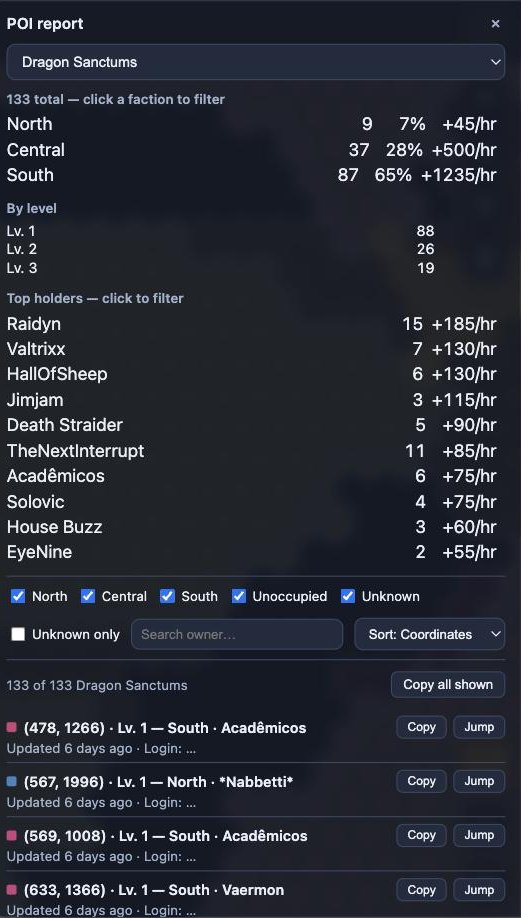
Click a faction or a top holder's name to filter the list straight to them.
The Distance column answers “how far is this from us?” in tiles, and the picker beside the sort box chooses what “us” means: the nearest tile of a region we hold (the default — how deep into someone else's ground a target sits), the nearest tile we actually stand on (a landmark or resource node we hold, or a member's stronghold — how far it is from a real staging point), or a place you name, typed as x, y or as the name of a capital or seat. Sort by it to put the closest targets first. It is straight-line distance, not a march route — the route planner is the tool for when the ground in between matters.
The Dossier
Where the map is about where things are, the dossier is about who people are: a running record of every player's power, playtime, and history, without any of the map's claim-editing tools.
The layout
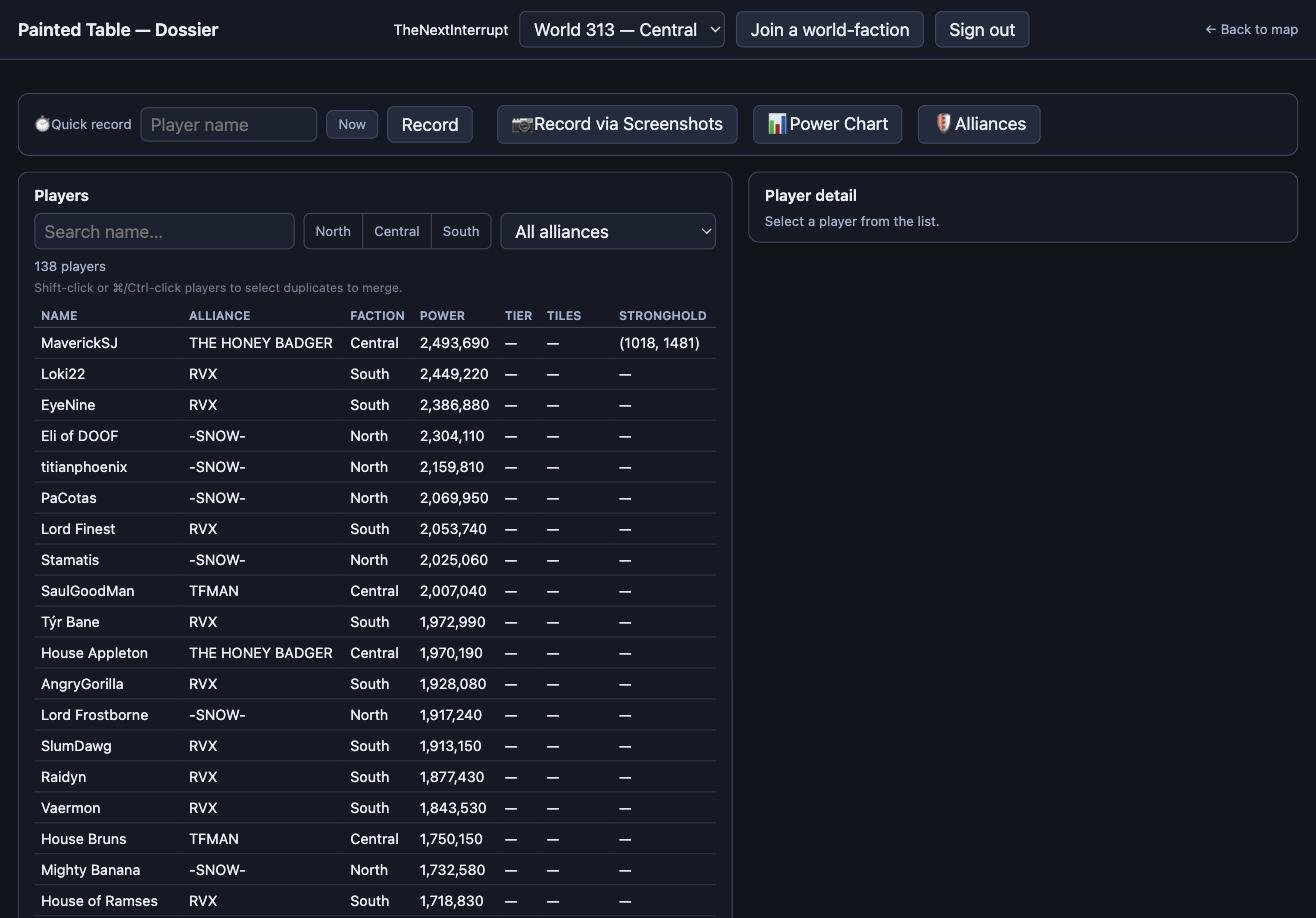
Across the top: Quick record, Record via Screenshots, the Power Chart, and Alliances (an admin-managed registry — ask your faction admin if a name or alliance tag needs correcting).
Quick record
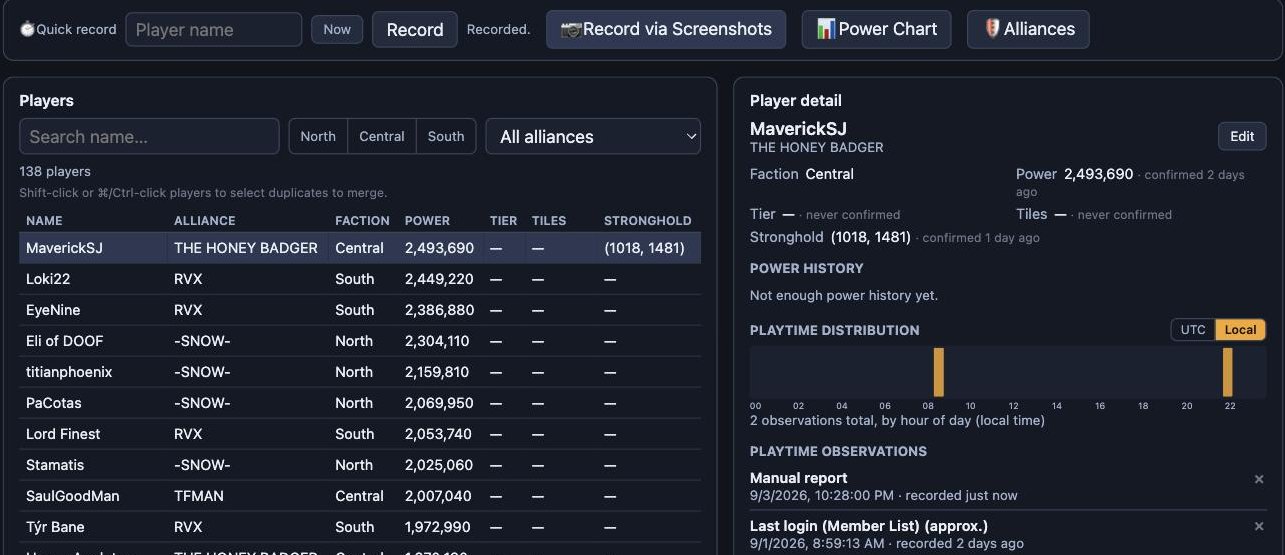
The fastest way to log "this player was online right now": type or pick a name, confirm the time (defaults to now — the Now button resets it), and hit Record.

Each record becomes one more data point in that player's playtime history, which is what powers the activity chart described below.
Recording via screenshots
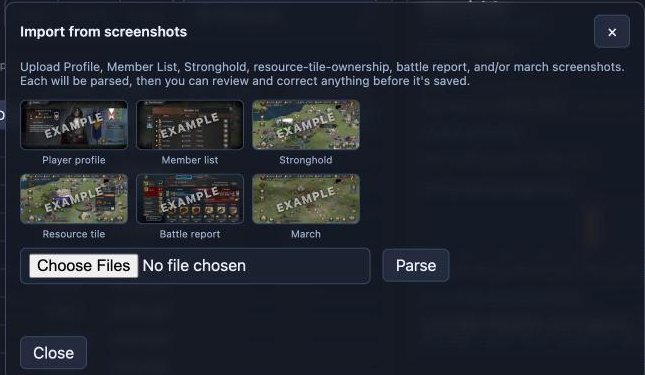
For anything richer than "online now," upload a screenshot and let it get parsed automatically. The dossier recognizes six kinds:
The player list
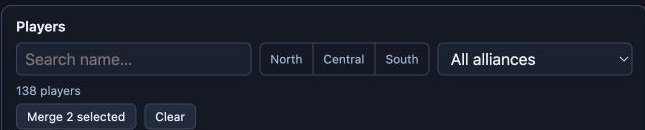
Search by name, narrow by faction, or filter to one or more alliances. If the same real player has ended up registered twice under slightly different names or capitalizations — a common side effect of parsing screenshots — hold Shift or ⌘/Ctrl and click both rows to select them for merging.
Player detail
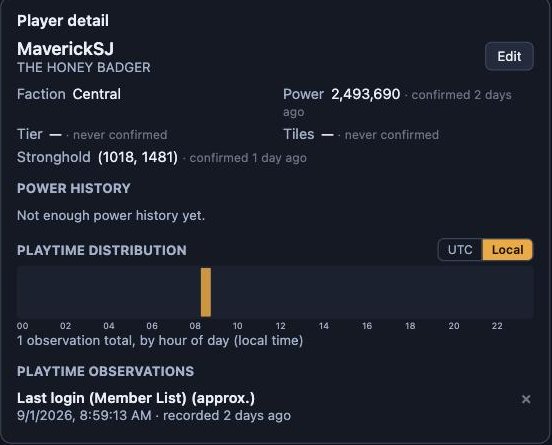
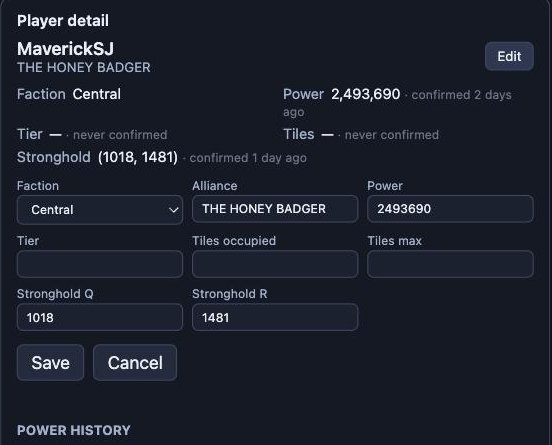
Click any player to see everything on file for them: current faction, power (with how long ago it was confirmed), tier, tiles, stronghold, a power-history chart once there's enough data, a playtime-distribution chart, and the full list of individual observations behind it. Edit opens the same fields for a manual correction.
The power chart
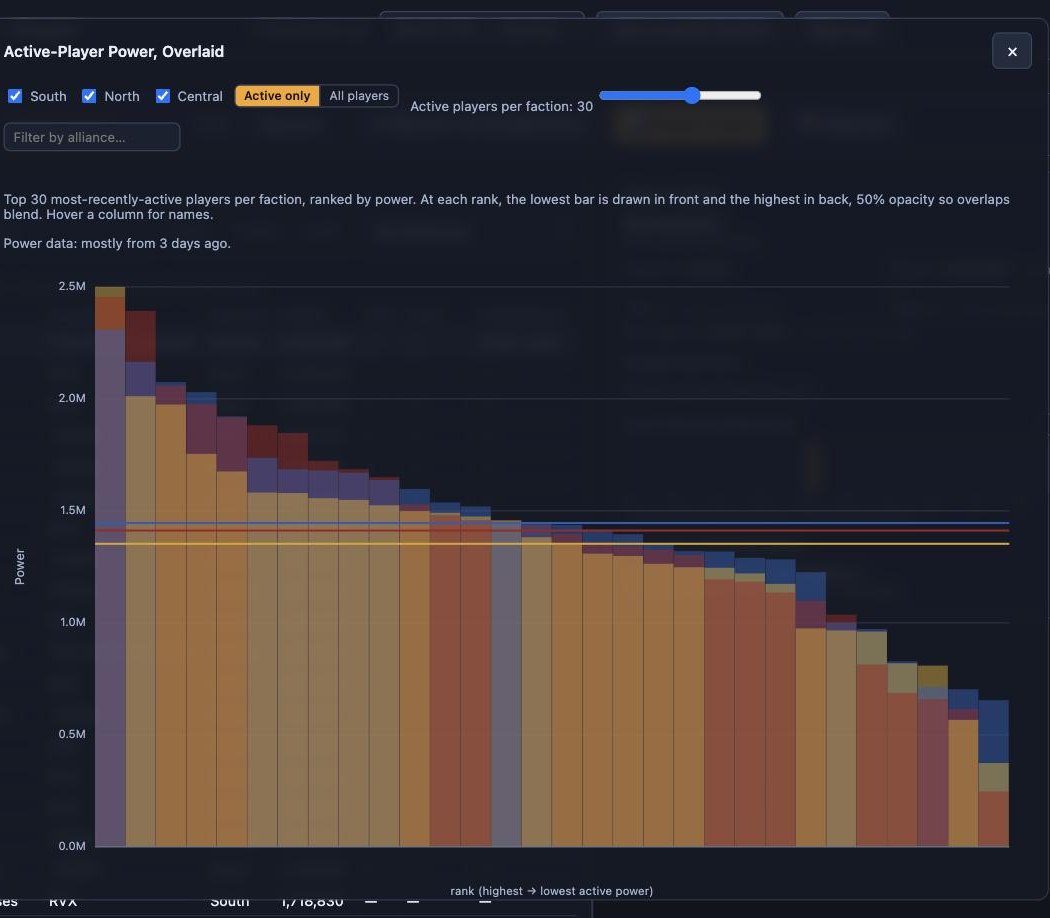
A world-faction-wide view: every active player's power, overlaid by faction, ranked highest to lowest. Toggle factions on or off, switch between "active only" and "all players," filter to one or more alliances, and adjust how many players per faction are shown.
Reference
Freshness & trust indicators
Power and login data go stale — both apps try to make that visible instead of hiding it:
- Anywhere a "last login" is shown, an old value is still shown rather than replaced with "unknown" — but it's marked (old), with the exact age on hover.
- The power chart's freshness line ("Power data: mostly from …") is based on when each screenshot was actually taken, not just when it was uploaded — so a batch you import today but that shows an old screenshot still reads as old.
- Every stat in a player's detail panel shows how long ago it was confirmed, right next to the value.
Tips for clean data
- Prefer screenshot import over manual entry when you can — it captures more fields at once and is less error-prone than retyping numbers.
- Merge duplicates as you spot them in the dossier's player list — a duplicate splits that player's history across two records and throws off power-chart rankings.
- Save filter combinations you use often on the map instead of rebuilding them every session — the Favorites section in Filters is built for exactly that.
- Check a location's history before re-claiming it if the current owner looks surprising — it's often faster than asking around.